aN IMMERSIVE NUMEROLOGY EXPERIENCE
Numerology Apps, Readings, Free Insights, Articles, Workshops, Professional Software, and more...
The World Numerology app:
18 Readings & Charts in One App!
Life is multi-layered with many moving parts. Finding time to evaluate your needs, relationships, work, where you are heading, can be challenging. Numerology can help you reach your goals.
Access our free personal tools where the focus is all on you: The World Numerology app - Your Personal Numerology Portfolio.
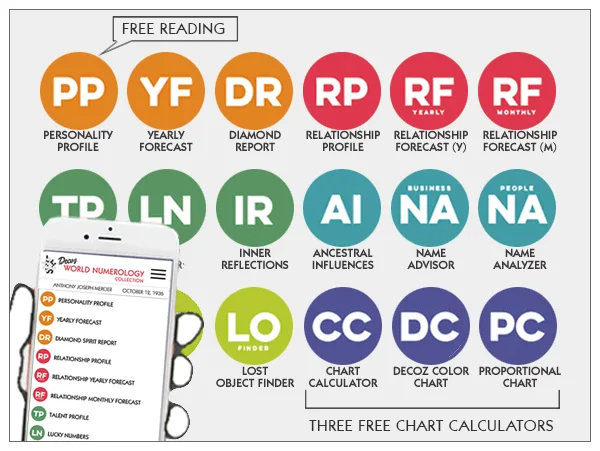
The Power of Numerology at Your Fingertips
-
Free: Daily Forecast
-
Free: 8-Page-Reading (View a sample)
-
Free: Three Different Charting Programs
READINGS included in the Primary or Full subscriptions





Master Numbers: 11, 22, and 33
Master numbers are highly charged and possess more potential than other numbers.
A good understanding of their influence and meaning can greatly improve the quality of your life.
Single Digit Numbers
Each single-digit number has a specific meaning and its own personality.
To gain insight, view each number as if it were a person with unique traits, instead of a list of positive and negative qualities.
Monthly Forecast

Check out your Free Monthly Forecast.
Get a heads up on changes that impact you this month! Knowledge is power - when you are prepared you will be able to handle whatever comes your way.
2024 Global Forecast
Karmic shifts, conflicts, and love in unexpected places.
It will not be an average year. It will be a year when humanity shows both its best side and its worst, with little room for anything in the middle.
Daily Number Forecast
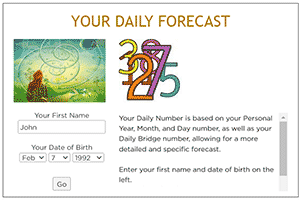
Get your personal Daily Number Forecast. Free. Every day.
Romance, finances, career, health, Hans Decoz' forecasts are the most specific and in depth numeroscopes you will find anywhere.
Monthly Relationship Forecast

Understanding the nuances of your partner (friend, co-worker, lover…) can help you sustain happy long-term relationships. And knowing more about someone you just started dating can’t hurt either.
Free Numerology Chart
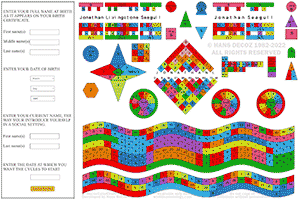
The popular Decoz® ChartMaker program was designed in 1982 and is used by professionals worldwide. Get your chart here, free, make as many as you wish. Find out what the numbers mean.
Free Proportional Chart

A Unique Perspective: For those who want a quick but accurate impression, this chart is ideal, it's like a bird's eye view. It shows which numbers dominate and which are less prominent, and what that means.
Numerology Book by Decoz

Available on amazon - 4.7 stars, 559 reviews.
Numerology: A Complete Guide to Understanding and Using Your Numbers of Destiny, by Hans Decoz, with Tom Monte.
Do Your Own Reading
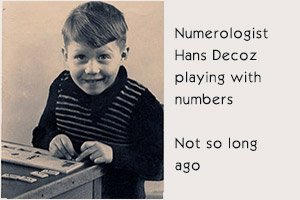
Master numerologist Hans Decoz guides you step-by-step, and rest assured, there is little or no math involved. Find out who you are what you are made of, and learn a little numerology on the way.
All Readings and Charts are the latest work by Master Numerologist Hans Decoz.
Google him, he has consistently produced the most accurate readings for over 30 years.
More than 3 million readings by Decoz sold since 1987
Four of the ten highest-traffic numerology sites got their start running Decoz' software
-Ω-